60 practical answers

MarginPilot FAQ: setup, supplier bids, delivery and payments

Find direct answers about managing a service business in MarginPilot, with links to the exact screens used for each step.

Updated

MARGINPILOT FAQ

About MarginPilot

Understand the service business workflow before you get started.

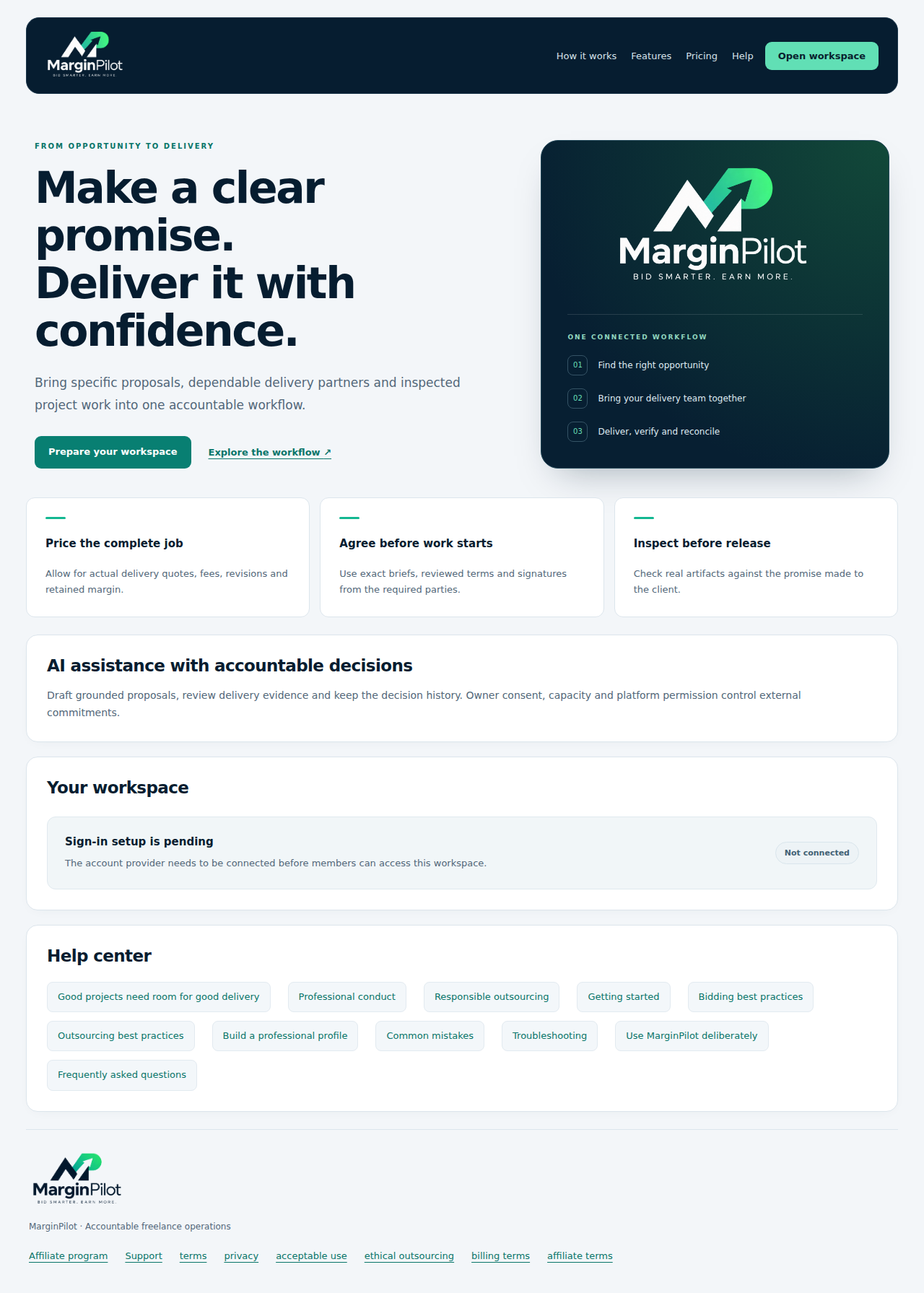
Product overview and account access in MarginPilot; illustrative sample data
Interface preview · sample dataFull desktop capture · Full phone capture

What is MarginPilot?

MarginPilot is software for managing freelance and agency service work from opportunity intake to proposals, supplier assignments, delivery review and recorded finances. A workspace connects your operating rules, approved project scope, delivery partners, agreements, messages and evidence. AI helps draft and evaluate supplied information; you remain responsible for the promises made to clients and the work you release.

See the workspace overview and setup screen

Who is MarginPilot for?

MarginPilot is designed for freelancers, agencies and service business operators who coordinate client projects and delivery partners. Suppliers can create an opted-in profile and respond to matching invitations. Clients and selected suppliers use project-specific portals when collaboration is authorized. Each role gets the access needed for its own work.

See the client and vendor portal screen

Is MarginPilot a public freelance job marketplace?

The supplier pool is a shared directory for signed-in, verified MarginPilot users. Suppliers receive private invitations matched to an approved delivery brief, skills, currency and available capacity. There is no public job board where every supplier can browse every client project. Marketplace opportunity intake is a separate workflow through an approved connection.

See the private supplier invitations screen

Can I use MarginPilot to manage outsourced or drop-servicing projects?

You can use MarginPilot to coordinate a service business that assigns permitted work to delivery partners. The workflow records client permission, exact scope, actual quotes, signed agreements and inspected delivery. Describe your delivery arrangement accurately and follow the client agreement and any source marketplace requirements. You remain accountable for quality, communication and the accepted commitment.

See the responsible outsourcing screen

Does MarginPilot guarantee clients, jobs or profit?

No. MarginPilot provides proposal, pricing, capacity and delivery controls. It does not guarantee demand, a winning bid, supplier performance or earnings. Minimum margin rules help screen commitments before assignment; real client receipts, delivery costs, fees, refunds and other business expenses determine the eventual outcome.

See the operational and financial reports screen
Back to topics ↑

MARGINPILOT FAQ

Accounts and workspace setup

Set up your identity, team and operating limits.

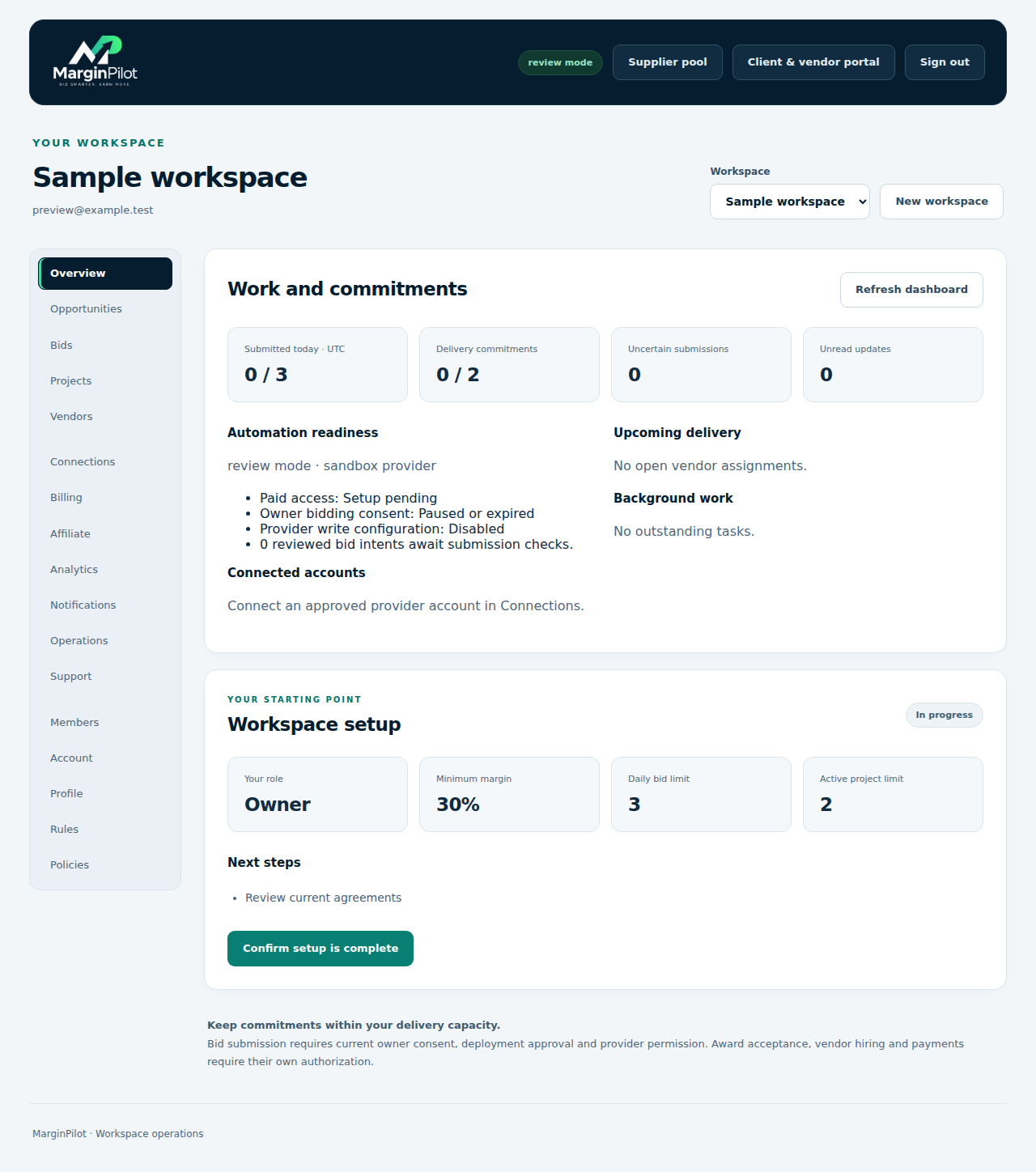
Workspace overview and setup in MarginPilot; illustrative sample data
Interface preview · sample dataFull desktop capture · Full phone capture

How do I create a MarginPilot account?

Open workspace access and use Create account when registration is configured. Complete the connected account provider’s registration and email verification yourself, then return to MarginPilot. Your account needs a verified email before protected workflows are available. If account access is marked as pending, the installation’s sign-in setup needs to be completed.

See the product overview and account access screen

What do I need before using a workspace?

Create or join a workspace, complete your factual profile and operating rules, review the current published policies, and obtain the access appropriate to your plan. Connect an approved marketplace account if you will use marketplace opportunities. Supplier sourcing also needs current owner-approved limits and platform availability. The Overview screen shows what is still blocking your setup.

See the workspace overview and setup screen

Which bidding and delivery rules can I control?

Rules includes your service categories, skills, excluded keywords, quote currency, maximum bid amount, daily bid limit and active-project capacity. You also set minimum retained margin, a minimum retained amount and a revision reserve. Choose the available proposal review and vendor selection settings. Changes to operating rules require the owner to review bidding consent again.

See the bidding and delivery rules screen

What information should I add to my professional profile?

Use specific service capabilities, relevant skills and experience you can substantiate. Describe what you actually delivered and the role you performed. Proposals should use these facts rather than invented qualifications, clients or results. Keep the profile current as your services and capacity change; share client portfolio material only with permission.

See the professional profile screen

Can I invite a team and control their access?

Use Members to invite the people who need workspace access and assign the appropriate role. Workspace permissions distinguish ownership, administration, operational work and viewing. Client and supplier project access is granted separately for the relevant engagement. Invite each person through their own account and avoid sharing a workspace owner login.

See the members and invitations screen

Can I use MarginPilot on a phone or desktop?

The web interface adapts to desktop and phone screens, including workspace navigation, supplier profiles, bid forms and project portals. The visual guide includes both sizes. A desktop client is also part of the codebase, but an accepted production installer is a separate release; this guide does not promise that a signed installer is currently available.

See the workspace overview and setup screen
Back to topics ↑

MARGINPILOT FAQ

Opportunities, proposals and bidding

Prepare specific proposals and keep external commitments within your rules.

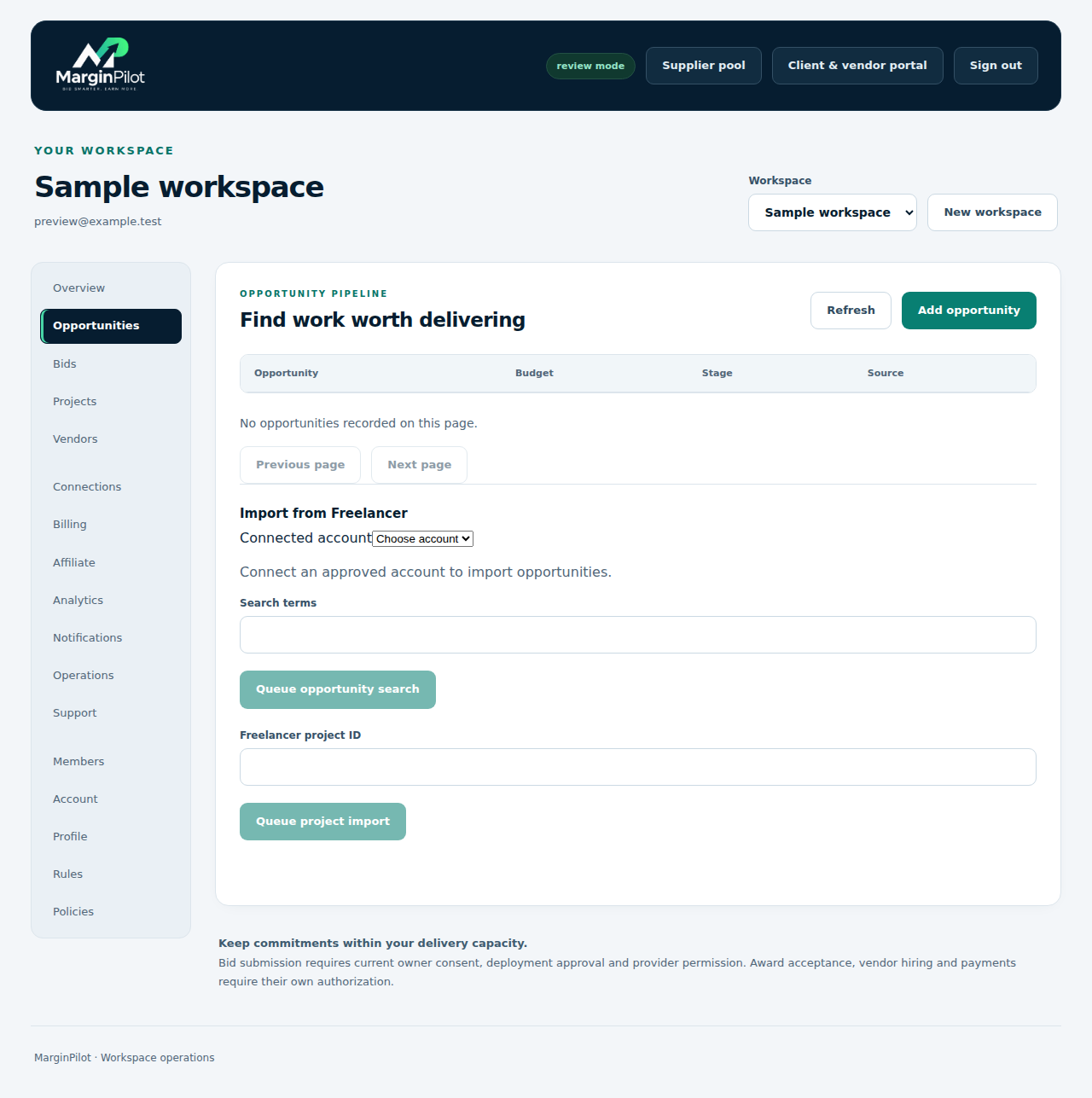
Opportunity review in MarginPilot; illustrative sample data
Interface preview · sample dataFull desktop capture · Full phone capture

Where do opportunities and projects come from?

Approved marketplace connections can import opportunities into the workspace for filtering and review. You can also record an actual awarded client project with its agreed scope, price, deadline and source. Direct project intake records a genuine client engagement; it does not automatically find clients or accept a marketplace contract on your behalf.

See the record an awarded project screen

How does AI help with proposals?

AI evaluates the supplied opportunity and drafts a proposal using the client brief and your factual experience. Review the proposed result, scope, price, questions and claims before approval. Missing information should become a clarification rather than an invented promise. A generated draft is not proof that a project is profitable or that the client has awarded it.

See the opportunity review screen

Can MarginPilot submit bids automatically?

Scheduled submission can process separately reviewed and approved bid intents when the required marketplace permission, workspace access, current policies, owner consent and operating controls are in place. Daily limits, maximum price and capacity still apply. A generated proposal is not automatically a submitted bid, and deployment alone does not enable marketplace actions.

See the bid intents and submissions screen

Does connecting Freelancer, Fiverr or another marketplace enable every action?

Each marketplace operation needs its own supported integration and permission. MarginPilot has a registered Freelancer connection workflow, subject to the actual app’s approval and permitted operations. Fiverr hiring automation is not provided through the independent supplier pool. Marketplace permission does not automatically authorize external messages, hiring, payments or moving an existing engagement away from its required channel.

See the marketplace connections screen

How can I pause automation or limit new commitments?

Keep proposals in review mode and set conservative bid, budget and capacity limits in Rules. External work also depends on the current owner consent and platform controls. Review queued work in Operations when a setting or permission changes. An assignment, signature or payment still follows its own authorization steps even if an earlier workflow is automatic.

See the bidding and delivery rules screen

What should I do if a bid submission times out?

Treat the result as uncertain until the original marketplace record is reconciled. A timeout does not prove the bid was rejected or never submitted. Use the saved intent, request reference and provider record to investigate the first attempt. Do not create another submission simply because the response was lost.

See the bid intents and submissions screen
Back to topics ↑

MARGINPILOT FAQ

Supplier registration and private bidding

Join the pool, receive invitations and quote for an exact delivery brief.

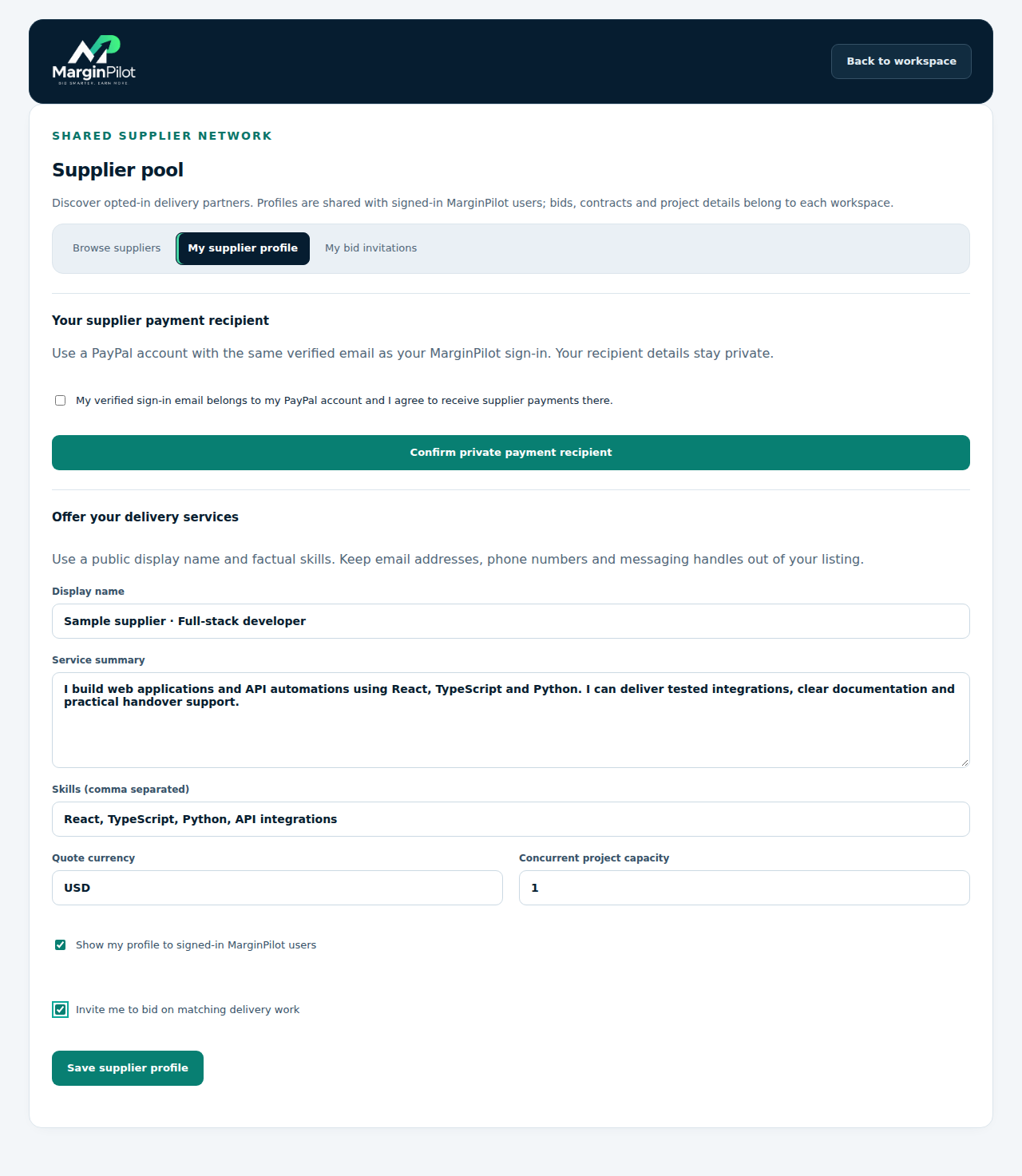
Supplier registration and payment recipient in MarginPilot; illustrative sample data
Interface preview · sample dataFull desktop capture · Full phone capture

How do suppliers register and offer their services?

Sign in with a verified account, open Supplier pool, then choose My supplier profile. Add a display name, service summary, skills, quote currency and concurrent-project capacity. Choose separately whether to show your profile to signed-in MarginPilot users and whether to receive matching work invitations. Save your profile after checking that the description is accurate and contains no contact details.

See the supplier registration and payment recipient screen

Where does a supplier see available work?

Open Supplier pool and select My bid invitations. An invitation shows the approved delivery brief, deliverables, acceptance criteria, supplier budget and deadlines for matching work. You see your own invitation and quote. Other suppliers’ bids, unrelated workspace projects, customer contact details and the customer’s selling price are not part of this invitation.

See the private supplier invitations screen

How does a supplier submit a bid?

Read the exact invited brief, then enter your price, delivery deadline, included revisions and scope or delivery notes. Confirm that you can deliver that scope at those terms and that you have capacity before submitting. The bid is bound to that brief version. A selected bid still needs the required agreement signatures and funding approval before work starts.

See the submit a private supplier bid screen

Can a new supplier bid without previous MarginPilot jobs?

Yes. The small-pool starter settings do not require a past-job history or rating threshold. Suppliers still need a verified account, opted-in availability, suitable declared skills, compatible currency and available capacity. Selection also checks the exact scope confirmation, price, margin, revision requirements and deadlines. Profile claims should be checked by the operator rather than treated as verified credentials.

See the supplier registration and payment recipient screen

Can one qualifying supplier bid be enough?

Yes, when the owner explicitly saves starter rules with a one-bid minimum and immediate selection. The first qualifying bid can be selected as it arrives within the approved limits. Timed comparison is also available and can require more bids. One bid is a selection threshold; it does not waive scope, price, capacity, deadline, margin or agreement requirements.

See the supplier sourcing and workspace payment setup screen

How does automatic supplier sourcing work?

The owner saves time-limited sourcing rules covering the supplier budget, fees, invitation count, qualifying bid count, revisions and delivery buffer. Approval of a current delivery brief can open private matching invitations when sourcing is available. Immediate mode selects the first qualifying bid; timed mode compares qualifying bids at closing or after all invited suppliers respond. Selection creates an assignment and allocates funding; it does not sign an agreement or send payment.

See the supplier sourcing and workspace payment setup screen

Can a supplier decline or withdraw a bid?

A supplier can decline an invitation or withdraw a submitted bid before selection. The saved bid remains a private record and is excluded from selection after withdrawal. A cancelled or no-bid round can be reopened by the owner as a fresh round under current rules. Availability and quote confirmation should reflect the supplier’s real commitments.

See the private supplier invitations screen

How does MarginPilot avoid overbooking a supplier?

Supplier profiles declare concurrent-project capacity. Pool-linked assignments consume capacity shared across workspaces, and availability is checked again during selection. A supplier cannot reduce capacity below existing commitments. These controls depend on accurate availability declarations and recorded assignments; they do not independently verify work a supplier has accepted elsewhere.

See the supplier registration and payment recipient screen
Back to topics ↑

MARGINPILOT FAQ

Agreements and project communication

Keep the exact commitment and the conversation with the project.

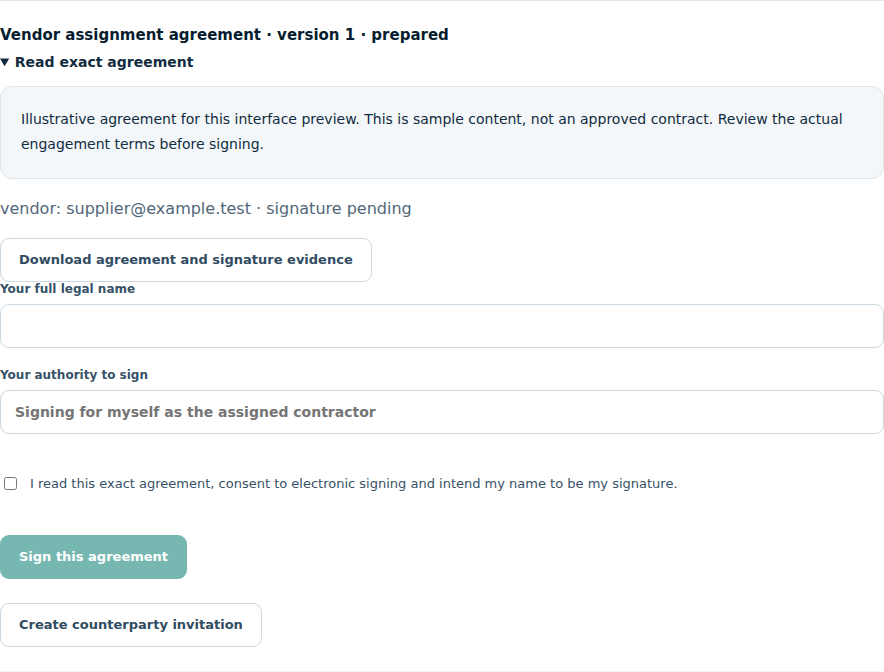
Exact assignment agreement in MarginPilot; illustrative sample data
Interface preview · sample dataFull desktop capture · Full phone capture

When can a selected supplier start work?

Selection creates a draft assignment. The required parties must sign the exact assignment agreement and funding must be approved before the assignment can start. The approved brief, actual quote, deadline and revision allowance belong to that engagement. An invitation, verbal acceptance or a single party’s signature does not complete the start requirements.

See the exact assignment agreement screen

How are agreements signed in MarginPilot?

Each required party uses their own verified account to read and sign the exact agreement version. Signing records the document version, content hash, name, authority, intent and time. You can download agreement and signature evidence. Use terms reviewed for the actual engagement; email verification and recorded signing intent are not independent identity verification or an automatic legal review.

See the client and vendor portal screen

Do I need client permission to subcontract?

Record the subcontracting permission required by the actual client agreement and any source marketplace before assigning delivery work. External collaboration also needs the relevant permissions and signed agreement. The project record helps preserve that evidence. MarginPilot does not turn a prohibited delivery arrangement into an authorized one.

See the record an awarded project screen

Can clients and suppliers communicate through MarginPilot?

Yes, when project collaboration is authorized and the required agreement and access grants are in place. The client and selected supplier use their own accounts for the specific project channel. Messages that must remain on a source marketplace stay in its permitted channel. Native portal access does not override marketplace requirements.

See the client project portal screen

Are contact details hidden from clients and other suppliers?

The directory, private bid invitations and project chat use limited profile information or role labels. Common email addresses, phone numbers and external messaging contacts are rejected in new profile text, bid notes and chat. The detection has limits, especially for obfuscated text and uploaded files. Required party information remains in private agreement evidence; project participants are not anonymous legal parties.

See the project conversation screen

Where do I find project messages and unread updates?

Open the project conversation in the workspace or the authorized client and vendor portal. Messages stay with that project, and unread history helps participants follow the work. Keep scope decisions, delivery questions and clarification in the agreed channel. Use a signed change order when the conversation changes a commitment rather than relying on chat alone.

See the project conversation screen
Back to topics ↑

MARGINPILOT FAQ

Delivery, quality and revisions

Inspect the work against the agreed result before releasing it.

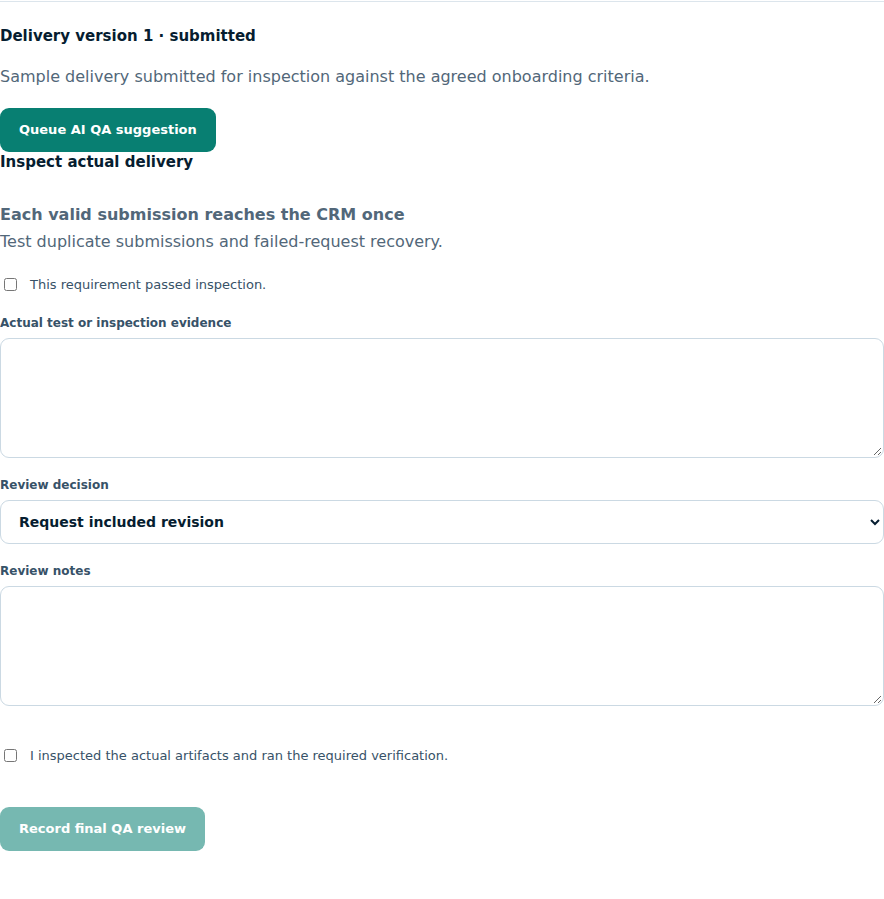
Inspect actual delivery in MarginPilot; illustrative sample data
Interface preview · sample dataFull desktop capture · Full phone capture

What should an approved delivery brief include?

The brief should state the deliverables, exclusions, assumptions, dependencies, deadline and acceptance criteria. Each criterion needs a practical verification method, such as a functional test or inspection of a supplied artifact. The approved version is used for supplier bidding and assignment. Changes to the scope need the agreed change process.

See the approved delivery brief screen

How does a supplier submit completed work?

Open the assigned project in Client & vendor portal. Submit the delivery evidence and references for the actual files or outputs. Uploaded project files follow the file inspection and access controls. The submitted delivery is a version for review; it does not by itself mean QA has passed, the client has accepted it or payment has been made.

See the supplier delivery portal screen

Does an AI quality review replace checking the deliverables?

No. AI can suggest a review based on supplied evidence, but the responsible operator must inspect actual artifacts and run the agreed verification. Record the evidence for each acceptance criterion and the final review decision. Client release requires the human QA controls. A convincing text summary does not prove that an application, integration or other deliverable works.

See the inspect actual delivery screen

How are revisions handled?

Assignments record the included revision allowance and revision count. A reviewed delivery can be returned for an included revision with specific inspection feedback. New scope or work beyond the agreed allowance needs an approved change before the extra work proceeds. Record what failed, the expected correction and how the next version will be checked.

See the inspect actual delivery screen

How does MarginPilot help prevent scope creep?

Start with a precise approved brief and a defined revision allowance. Use Prepare a signed change order when a request changes scope, price, deadline or revisions. The parties review and sign the exact revised commitment before it becomes effective. The original record remains available so that a later request can be compared with what was actually agreed.

See the signed scope change screen

What if a supplier misses a deadline or cannot complete the work?

Review the assignment’s actual status, evidence and signed terms. Record the issue and use the controlled termination or replacement flow when needed. A replacement must have available capacity, a current quote, enough remaining margin and the required agreement. Existing costs and project evidence remain relevant; replacing a supplier does not erase the original commitment.

See the project list screen

When is work released to the client?

Record inspected and approved delivery, follow the permitted client delivery channel and preserve the release evidence. Client acceptance is a separate actual outcome to record. A submitted supplier delivery, an AI suggestion or an internal status change alone is not proof that the client received or accepted the work.

See the client project portal screen

Why is a project file quarantined or unavailable to download?

Files remain unavailable while malware scanning or required checks are pending, unavailable or failed. Refresh the project file status and use Support with the project and request reference if the condition persists. Do not bypass inspection by copying the file into an unapproved channel. Authorized project access and retention settings also control file availability.

See the controlled project files screen
Back to topics ↑

MARGINPILOT FAQ

Supplier payments and project finances

Distinguish agreed prices, payment authorization and actual receipts.

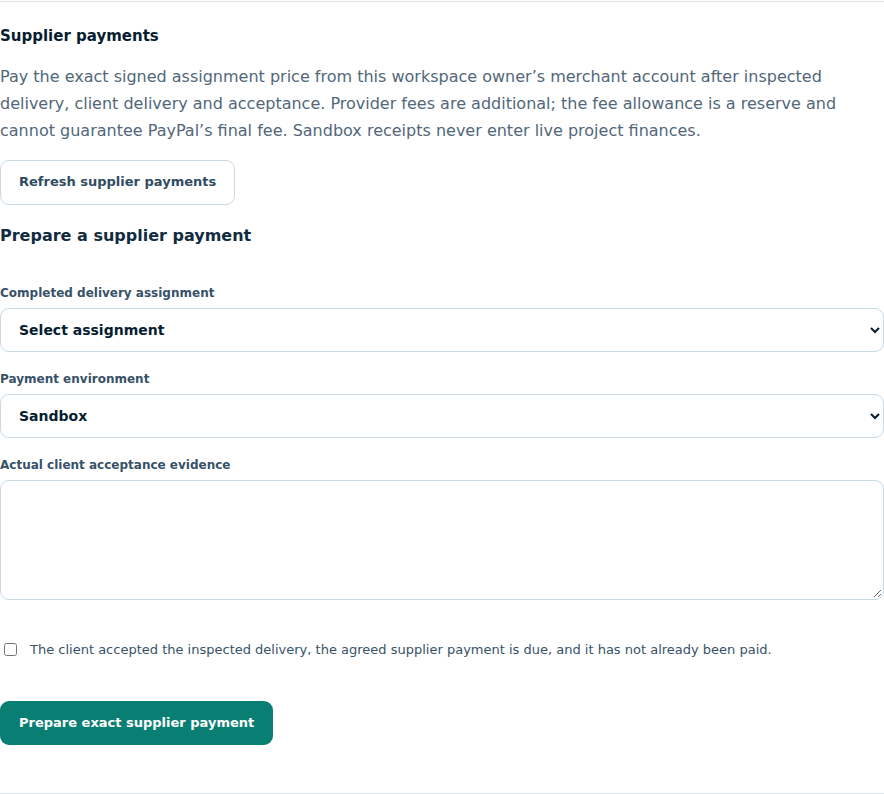
Assignment payment review in MarginPilot; illustrative sample data
Interface preview · sample dataFull desktop capture · Full phone capture

Who funds supplier payments?

Each workspace owner connects their own PayPal business application for supplier payments. Supplier transfers do not use a shared MarginPilot or ForgeLayer payer. Sandbox and live accounts are separate. PayPal account eligibility, Payouts permission, funds, supported currency and the installation’s payment activation requirements still apply.

See the supplier sourcing and workspace payment setup screen

How does a supplier set their payment recipient?

In My supplier profile, the supplier privately confirms their verified MarginPilot sign-in email as the PayPal recipient. This release uses that verified email; an alternate recipient email is not offered. The recipient is not shown in the directory or client view. Resolve pending payments before attempting to change a recipient.

See the supplier registration and payment recipient screen

When can a supplier payment be released?

The payment workflow requires genuine agreement signatures, inspected and approved delivery, recorded client delivery, verified actual client receipts and client acceptance evidence. The owner prepares and separately authorizes the exact agreed full assignment payment, recipient and payer, including fees. Automatic bid selection does not authorize a transfer.

See the assignment payment review screen

Does MarginPilot provide escrow, upfront deposits or milestone payouts?

The current supplier transfer workflow supports the reviewed full assignment payment after the required delivery and acceptance checks. It does not implement escrow, upfront supplier deposits, partial milestone payouts or unattended payment release. Agree payment terms that the supported workflow can meet, and use only permitted external arrangements where a different payment structure is required.

See the assignment payment review screen

How do I know a supplier was actually paid?

Reconcile the original provider payment record. Success requires matching evidence for the recipient, amount, currency, transaction and actual fee. A prepared payment, accepted batch, pending or unclaimed transfer is not proof of a successful recipient payment. Sandbox outcomes never enter live project costs. The project’s payment record keeps the verified status and observations.

See the assignment payment review screen

What should I do if a payment response is lost?

Keep the original payment reference and reconcile its original sender batch in the owner’s PayPal account. The payment can remain uncertain or processing while the outcome is investigated. Do not create a second transfer just because the first response timed out. Submitted failures, cancellations or account replacement need reconciliation before another payment is considered.

See the assignment payment review screen

How does MarginPilot check margin before assigning work?

The assignment check subtracts the supplier quote, revision reserve, fee allowance and any relevant prior replacement costs from the agreed selling price. The remainder must meet both the minimum retained amount and percentage in Rules, in the agreed currency. This is a commitment check using recorded inputs; it is not a guarantee of final profit.

See the bidding and delivery rules screen

Are projected margins the same as actual profit?

No. Project finances show recorded client receipts minus recorded costs and refunds, with supporting transaction evidence and correcting entries. Reserves and estimates describe an expected commitment, while actual transactions describe what happened. Reports separate currencies rather than silently converting them. The recorded retained amount is not a complete measure of every business expense or tax obligation.

See the recorded project finances screen

How are fees and returned payments recorded?

A verified live supplier payment records the principal and actual provider fee once. A later verified return reverses the principal once; fees remain unless their refund has actual evidence. A fee allowance is a planning reserve, not a guarantee of the provider’s final fee. Financial corrections preserve the original receipt history.

See the recorded project finances screen
Back to topics ↑

MARGINPILOT FAQ

Privacy, access and account controls

Keep project materials with the people authorized to use them.

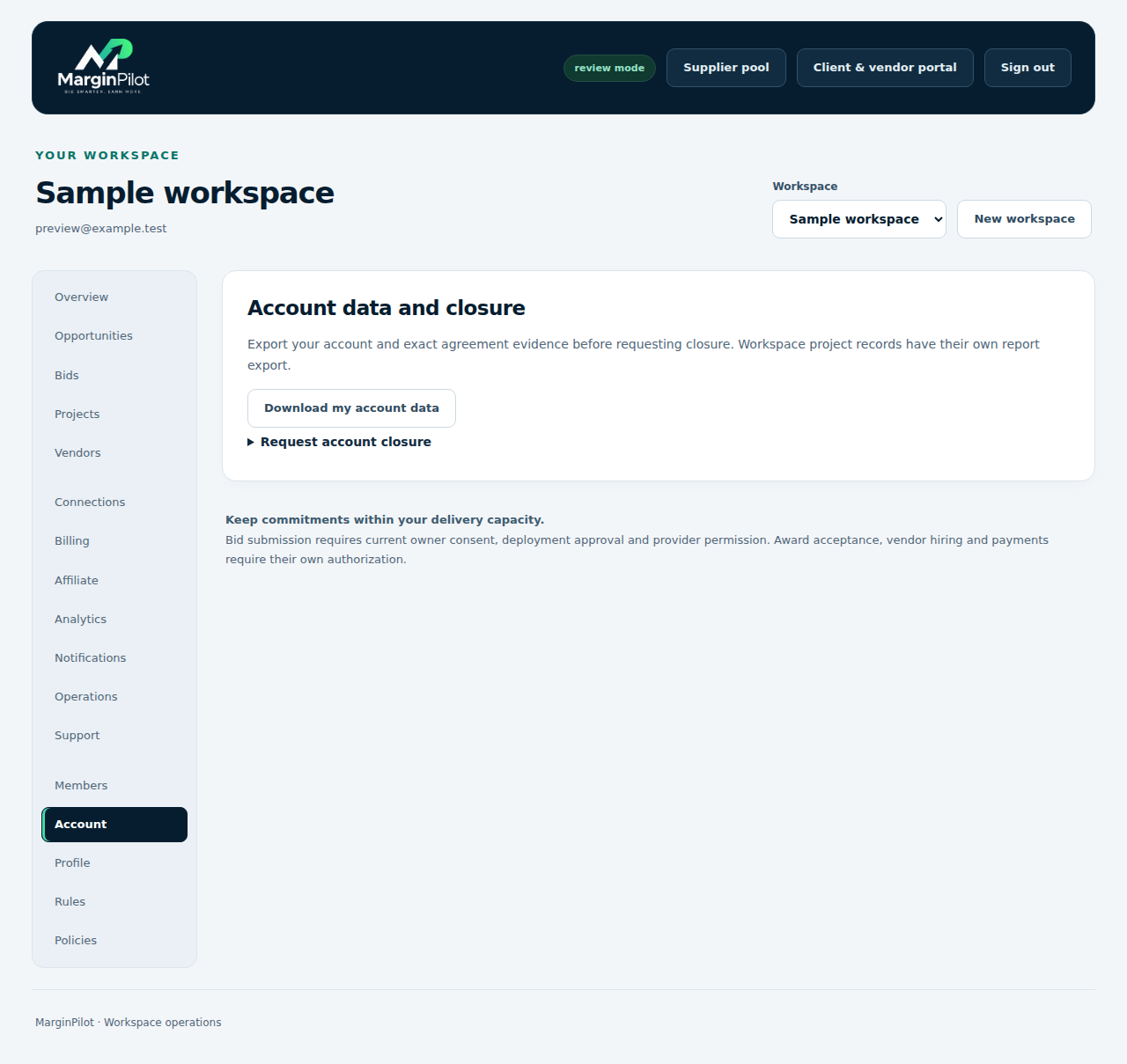
Account controls and export in MarginPilot; illustrative sample data
Interface preview · sample dataFull desktop capture · Full phone capture

Can other workspaces see my clients, bids or project finances?

Workspace business records are scoped to the authorized workspace and project roles. The opted-in supplier directory shares limited profile information across signed-in users; invitations and bids remain private to the relevant engagement. Suppliers do not receive the customer selling price or retained margin through the private invitation. Give clients and suppliers only the project access they need.

See the members and invitations screen

How should I share client materials with a supplier?

Share material only when the client agreement and source platform permit it, and limit access to the actual project participants. Use the project’s controlled file workflow and reviewed confidentiality terms. Keep passwords, payment details and unnecessary personal information out of briefs, messages and support cases. A contact filter cannot inspect every fact embedded in a document.

See the controlled project files screen

Can I export account or project records?

Account controls provide a personal account export, including applicable profile, acceptance and agreement evidence. Entitled project exports are a separate workspace workflow. Records held by a connected marketplace or identity provider may require that provider’s own export process. Keep the exported material secure and share it only with authorized recipients.

See the account controls and export screen

Can I close my account or delete project files?

Account closure and project file retention have separate guarded workflows. Pending payments and other unresolved obligations can block closure. Project retention checks identify relevant requirements before removing files, and agreement or transaction evidence may need to remain. Review the current published privacy policy and use the account request process for your actual situation.

See the account closure request screen
Back to topics ↑

MARGINPILOT FAQ

Plans, billing and affiliates

Use current published terms for prices, access and eligibility.

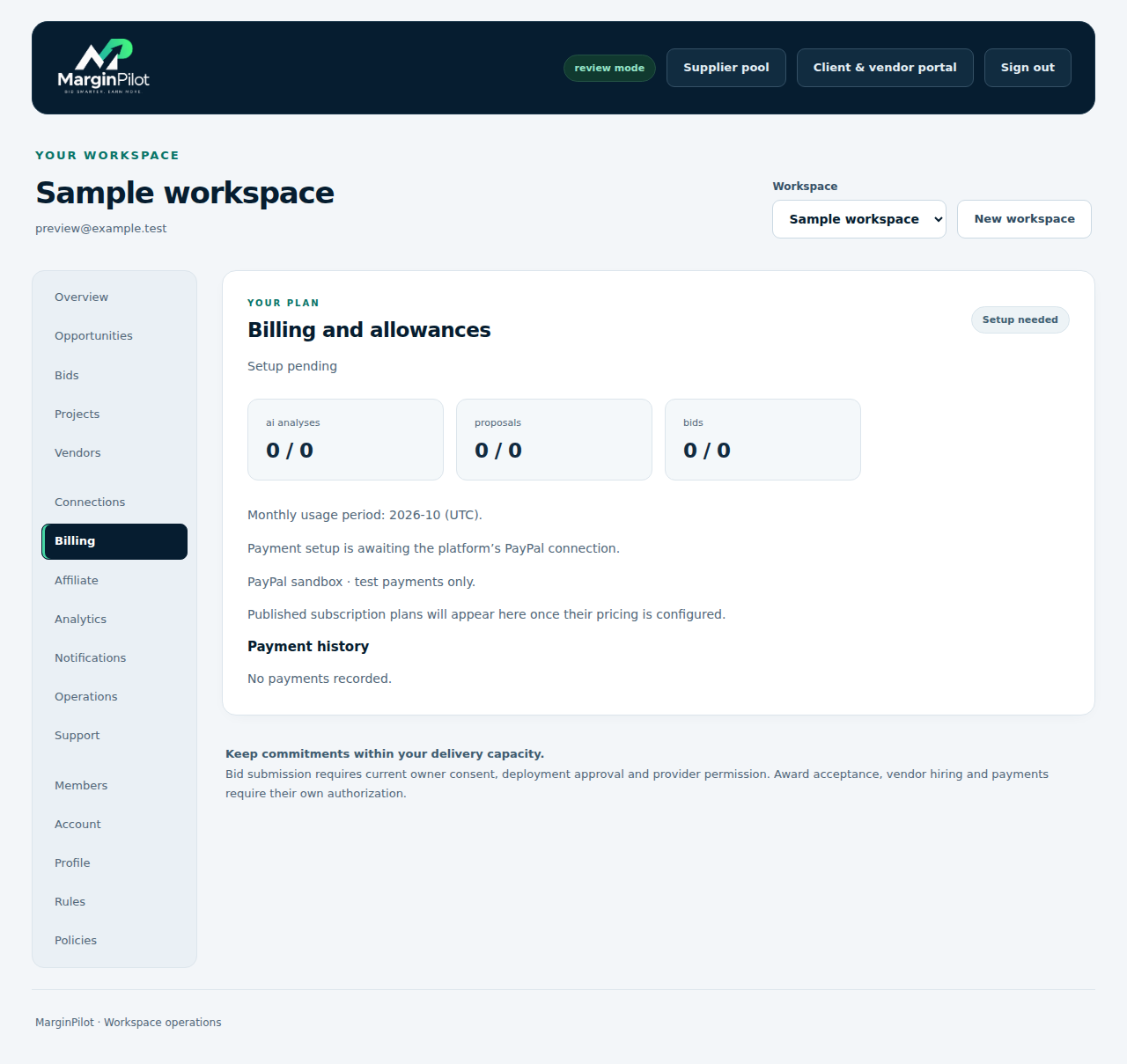
Software plan and billing in MarginPilot; illustrative sample data
Interface preview · sample dataFull desktop capture · Full phone capture

How much does MarginPilot cost?

The Pricing page shows the currently published, approved plans and their actual recurring price, currency and included usage. If no paid plan is published for an installation, the page says so. This guide does not invent a subscription price or promise a free plan. Workspace access, limits and billing depend on the current approved plan and account status.

See the current published pricing screen

Is my MarginPilot subscription the same as paying a supplier?

No. Subscription billing pays for the workspace’s software plan. Supplier payments are separate assignment-specific transfers funded by the workspace owner’s own payment account. An active subscription does not fund a project, approve a merchant, create a supplier order or prove that the supplier has been paid.

See the software plan and billing screen

How does the affiliate program work?

Participation depends on the current published program terms and approved enrollment. Eligible commissions relate to actual qualifying subscription payments and account for refunds and review requirements. The affiliate view shows enrollment, referrals, balances and payout records. Commission rates or payment dates should come from the current program, not an assumed percentage in this guide.

See the affiliate participation and records screen
Back to topics ↑

MARGINPILOT FAQ

Operations, notifications and support

Resolve blocked work from its saved state and evidence.

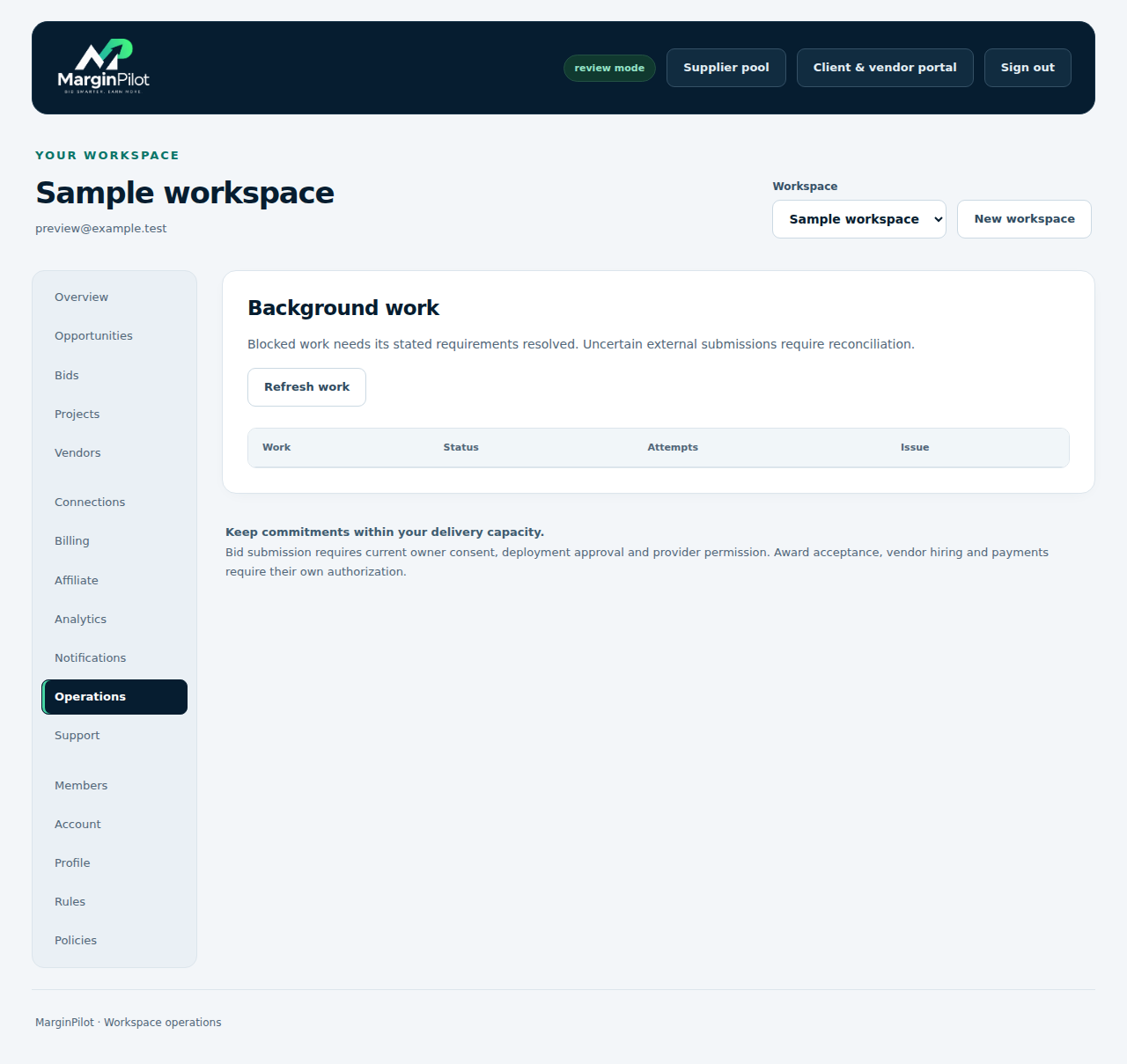
Background work and recovery in MarginPilot; illustrative sample data
Interface preview · sample dataFull desktop capture · Full phone capture

What happens to background work when the application is idle?

This installation uses an on-demand application that can stop when idle. Scheduled polling, timed supplier comparison and other background work pause while it is stopped and resume after wake and recovery. Immediate one-bid selection can run during an incoming supplier bid request. Timed rules should not be treated as a promise of continuous wall-clock execution.

See the background work and recovery screen

Why is a proposal, assignment or task blocked?

A saved action may be blocked by changed scope, expired consent, an unavailable connection, plan limits, capacity, funding, signatures or platform availability. Review Overview, Operations and the relevant project record to identify the actual reason. Resolve that condition before retrying, and investigate uncertain external actions against their original provider record.

See the background work and recovery screen

Can I control notifications and email preferences?

Notifications includes your saved updates and configurable email preferences, categories, timezone and quiet hours. Email delivery depends on the configured sender and current controls. A saved notification or successful sender check is not proof that an email reached an inbox. Keep operational references when reporting a missing or duplicate message.

See the notifications and preferences screen

How do I get help with an issue?

Use the public help center first, then open Support in your workspace to create a case. Include the affected project or task, the steps you took, expected behavior and request reference. Keep credentials, verification codes and unnecessary client information out of the case. Account provider recovery and identity checks must be completed through your own provider account.

See the open a support case screen

Do the screenshots show real customers or completed transactions?

The guide uses real MarginPilot interface captures with isolated sample accounts, projects and agreements. Private-screen data is illustrative, and some screens show setup or activation still pending. The images do not represent customer testimonials, live supplier bids, signed engagement evidence, merchant approval, payments or measured earnings.

See the workspace overview and setup screen
Back to topics ↑

Put the workflow into practice

Start with a precise brief, realistic limits and an inspected delivery. Use the current agreements and permissions for each actual engagement.